One person found a 30 GB Spotify cache, downloaded AI models, Adobe files, and other app leftovers. They chose what to remove themselves.
Mac System Data taking up too much space?
See what is hiding
inside System Data.
Understand what is taking the space, why it exists, and what to consider before removing it.
The same complete app either way. Pay only if it helps and you want to support future improvements.
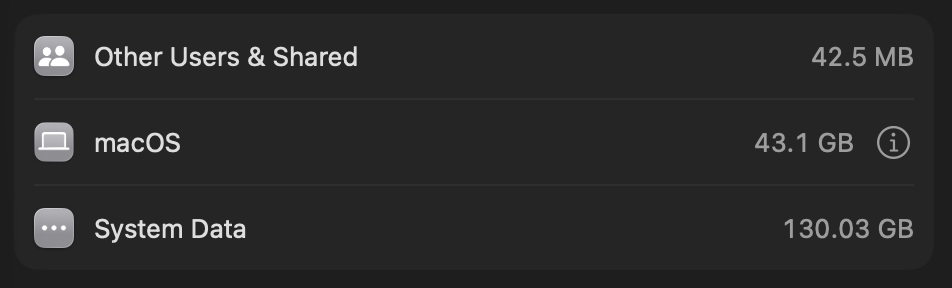
See how it helpsBefore130.03 GB
After75.34 GB
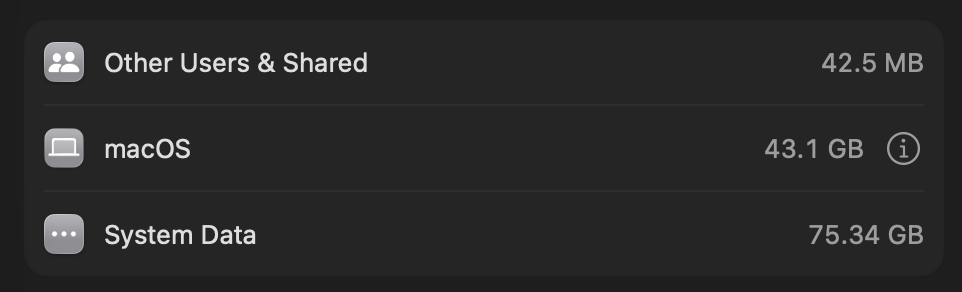
I understood the findings, then chose what to remove.
This happened on my Mac. It is not a promised result.
Built out of the same frustration.
I wanted an answer.
Not another number.
My Mac had space tied up in simulator folders that Xcode wasn’t showing. The usual advice didn’t explain what I was seeing.
I found files I no longer needed and removed them myself. That experience is why I built this app: to make hidden storage easier to understand.
Deljo JosephFrom a mystery to a next step.
See what’s there.
Decide what matters.
Start with the biggest findings. Open only the detail you need, without losing your place.
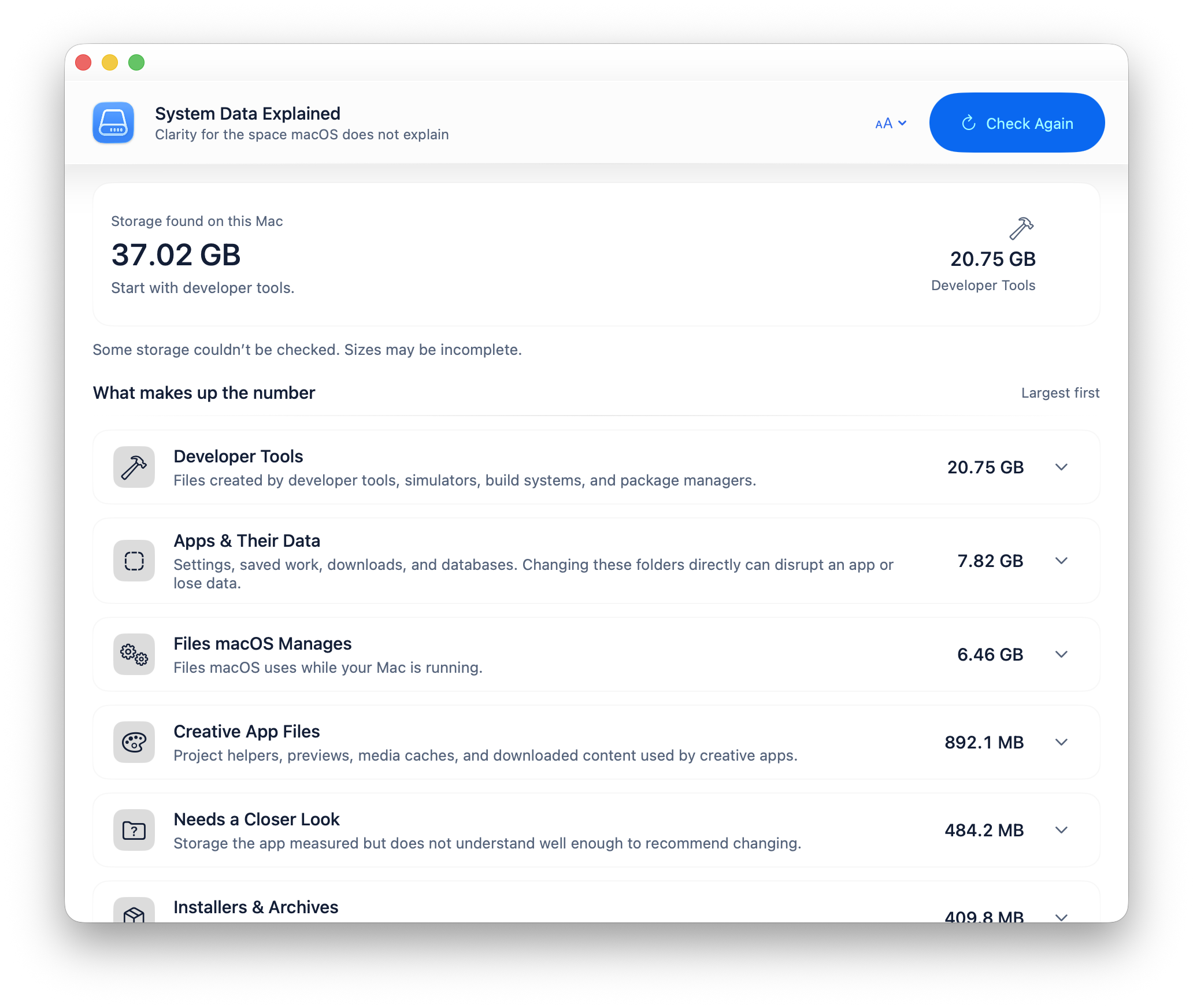
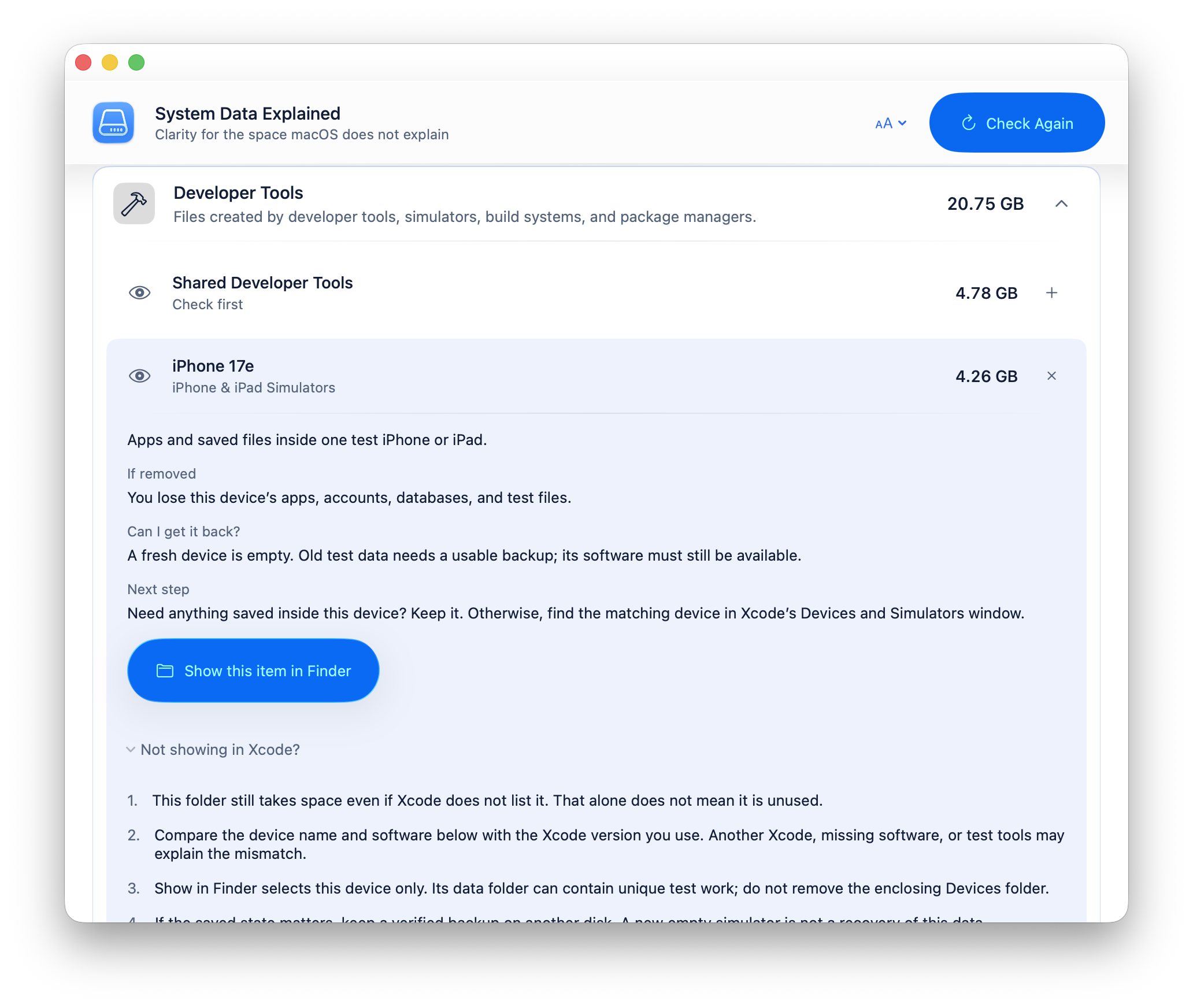
Real app screenshots. Your categories and amounts will depend on your Mac.
Now tested on Macs beyond mine.
Different Macs.
Different answers.
People in the Mac community found very different causes. That is exactly why a single generic System Data fix does not work.
Another person found useful space and independently observed that the app did not connect to the internet.
One person already suspected Parallels. The app gave them a simple way to see and confirm what was there.
These are individual experiences, not guaranteed results. The app explains storage. It does not remove it.
Useful to know, with or without the app.
System Data is a label.
Not a folder to empty.
Apple groups files here when they don’t fit another storage category. Some are needed. Some may deserve a closer look. The size alone doesn’t tell you which.
Before removing an unfamiliar item, find out what uses it and whether it holds work you need. Being able to download an app again does not mean you can recover its saved work.
Apple’s explanation of System DataA different part of the answer.
From a number to a decision.
macOS Storage
Shows the broad System Data number.
Visualizers and cleaners
Show where space lives or remove common safe targets.
System Data Explained
Adds context for storage that still needs your judgment.
A few things you might ask.
Does it delete anything?
No. The app explains what it finds and gives you a next step. Any removal happens outside the app, with you in control. It does not decide that a large file is unwanted.
Will it explain all of my System Data?
Not always. Some locations are private to macOS, and some files are not recognized. The app tells you when it doesn’t know. It does not promise to match Apple’s total exactly.
Why is System Data so large?
It is a broad label, not one thing. Files kept by your apps can grow over time. The cause depends on your Mac, so the app starts with what it actually finds, not a list of assumed problems.
What if I’ve already deleted files?
Start with what is still taking space. A change to Apple’s System Data label does not always mean the same change in available space. The app helps you inspect measured items, but it cannot diagnose every difference in macOS storage totals.
What happens if I decline access?
You can say no when macOS asks for folder access. The app keeps working with what it can read and tells you when a result may be incomplete.
Which Macs does it work on?
The app supports macOS Sonoma 14 or later, on Apple silicon and Intel. Download the ZIP, open it, then move System Data Explained into Applications. There is no separate installer or administrator password required by the app.
Is the paid download different?
No. Free and paid downloads contain the same complete app. The $4.99 purchase is an optional way to support continued development after the app has helped you.
Can I inspect the source code?
Yes. The complete app source, safety checks, architecture rules, license, and release-verification steps are public on GitHub.
What does the one-time purchase include?
The current Mac app, with no subscription or in-app account. It works offline after download. There is no automatic update service. Keep your purchase receipt if you need payment help.

Try it on your Mac.
The complete app is free. If it saves you time, space, or another evening of searching, you can support its continued development.
Same app · Optional $4.99 support · No subscription
Version 1.0 (7) · Apple silicon + Intel · Requires macOS 14 Sonoma or later
A signed, notarized ZIP download. You choose what to remove.